%20--%3e%3cdefs%3e%3cstyle%3e%20.st0%20{%20fill:%20%23f5acfe;%20}%20.st1%20{%20fill:%20%23bbfd6b;%20}%20%3c/style%3e%3c/defs%3e%3cpolygon%20class='st1'%20points='.2%2040%2039.9%20.3%2053.7%2014.2%2060.6%2020.9%2044.9%2036.5%2031.4%2035.2%2013.5%2053.2%20.2%2040'/%3e%3cpolygon%20class='st0'%20points='79.9%2040.1%2040.2%2079.8%2026.4%2066%2019.5%2059.2%2035.1%2043.6%2048.6%2044.9%2066.6%2026.9%2079.9%2040.1'/%3e%3c/svg%3e)
The one 9:16 safe zone for every platform
This is one 9:16 safe zone, 1080×1920, built to survive TikTok, Reels and Shorts at the same time. It takes the widest reserve each platform needs on every edge: 380 px top, 420 px bottom, 60 px left and 120 px right. Stay inside that box and the same clip posts everywhere without re-cropping.
If you cut a vertical video once and send it to all three apps, this is the safe choice. Rather than guessing which platform hides what, it assumes the worst case on each side. Your captions might sit a little further in than a single-platform template, and in return nothing ever gets covered.
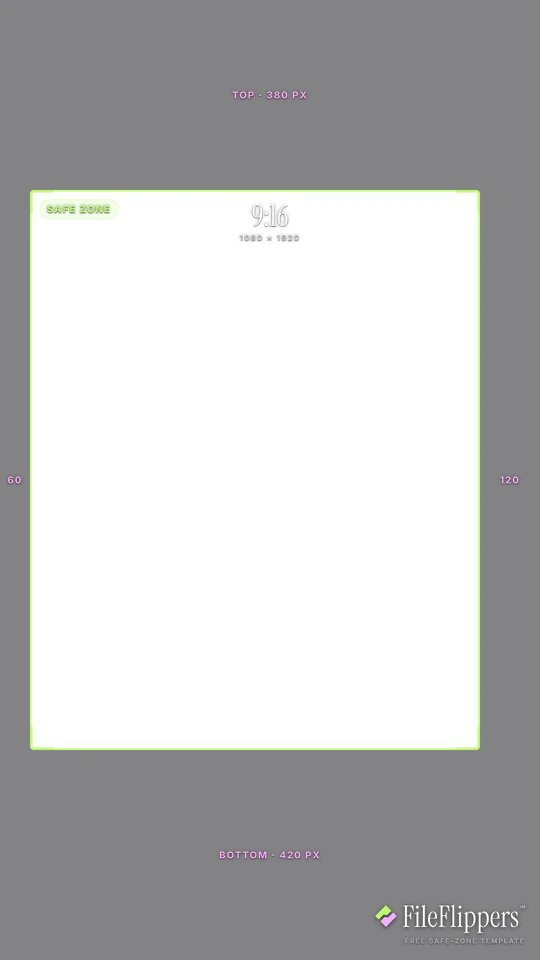
9:16 · All vertical platforms — 1080 × 1920
Drop it over your video in Premiere, CapCut, Final Cut or Resolve and keep your text and logos inside the green box.
Reserves — top 380px · bottom 420px · left 60px · right 120px
Download PNG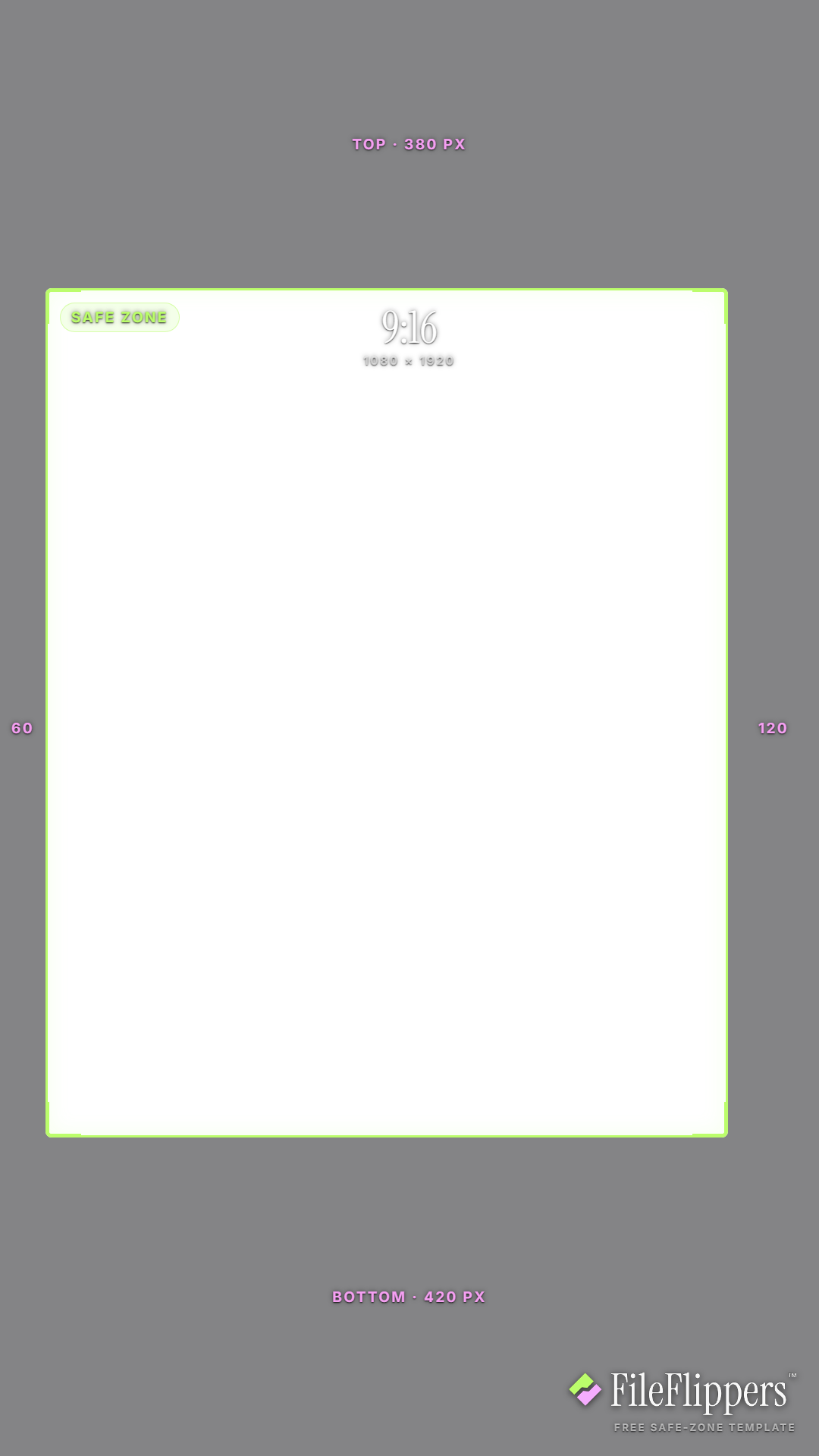
Where the All vertical platforms UI sits
These are the margins the template reserves on a 1080 × 1920 frame. Keep text and logos out of them.
| Edge | Reserve | What sits there |
|---|---|---|
| Top | 380 px | Worst-case top reserve, taken from YouTube Shorts. |
| Bottom | 420 px | Worst-case bottom reserve, taken from Instagram Reels. |
| Left | 60 px | Widest left margin across the three apps. |
| Right | 120 px | Widest right margin, covering TikTok and Shorts buttons. |
All vertical platforms safe-zone best practices
- Post once, everywhere. Because this template takes the widest reserve on each edge, a clip that clears it will clear TikTok, Reels and Shorts without re-editing. That's the whole point of it.
- Expect a slightly tighter box. Worst-case margins mean your safe area is smaller than any single-platform guide. Text sits a little further in, which is the trade for never having to re-crop.
- Still centre your subject. The clear middle band is wide enough for faces and product. Keep the main subject centred and let the reserves handle whatever UI each app throws over the edges.
- Switch to a platform guide for finishing. If a clip is only ever going to one app, its dedicated template gives you more room. Use this combined one when the same export goes to all three.
How to use the overlay
- Download the transparent PNG above. The centre is clear, so it sits over your footage without hiding anything.
- Add it as a top layer in Premiere, CapCut, Final Cut or DaVinci Resolve, matched to the same resolution.
- Keep text and logos inside the green box, away from the shaded margins.
- Hide the overlay before you export. It is a guide, not part of the final video.
Frequently asked questions
What margins does the combined 9:16 safe zone use?
It takes the widest reserve each platform needs on every edge: 380 px top, 420 px bottom, 60 px left and 120 px right, on a 1080×1920 frame. Clear that box and the clip is safe on TikTok, Reels and Shorts.
Will one clip really work on TikTok, Reels and Shorts?
That's the idea. By assuming the worst-case UI on each side, this template guarantees nothing important gets covered on any of the three, so you export once and post everywhere.
Is the combined template too tight for a single platform?
Slightly. Because it stacks every platform's worst case, the safe area is smaller than a dedicated guide. If a clip only goes to one app, that platform's own template gives you more room.
Is it free and account-free?
Yes. The transparent PNG is free to download and use commercially, with no attribution and no sign-up required.
Made your clip? Send it in one link.
FileFlippers sends large video to clients and collaborators, with watermarked previews and payment-gated delivery. Free to start, no card required.