%20--%3e%3cdefs%3e%3cstyle%3e%20.st0%20{%20fill:%20%23f5acfe;%20}%20.st1%20{%20fill:%20%23bbfd6b;%20}%20%3c/style%3e%3c/defs%3e%3cpolygon%20class='st1'%20points='.2%2040%2039.9%20.3%2053.7%2014.2%2060.6%2020.9%2044.9%2036.5%2031.4%2035.2%2013.5%2053.2%20.2%2040'/%3e%3cpolygon%20class='st0'%20points='79.9%2040.1%2040.2%2079.8%2026.4%2066%2019.5%2059.2%2035.1%2043.6%2048.6%2044.9%2066.6%2026.9%2079.9%2040.1'/%3e%3c/svg%3e)
YouTube Shorts safe zone template
The YouTube Shorts safe zone sits in the centre of a 1080×1920 frame, with a big reserve top and bottom. Keep about 380 px clear at the top and 380 px at the bottom, plus 60 px on the left and 120 px on the right. Shorts hides more of the frame than most people expect.
The top holds search and the progress bar, and the bottom carries the title, channel name, description and playback controls. The like, dislike, comment, share and remix buttons run up the right edge. Because Shorts eats so much vertical space, text that looks fine in your editor can vanish once it's live.
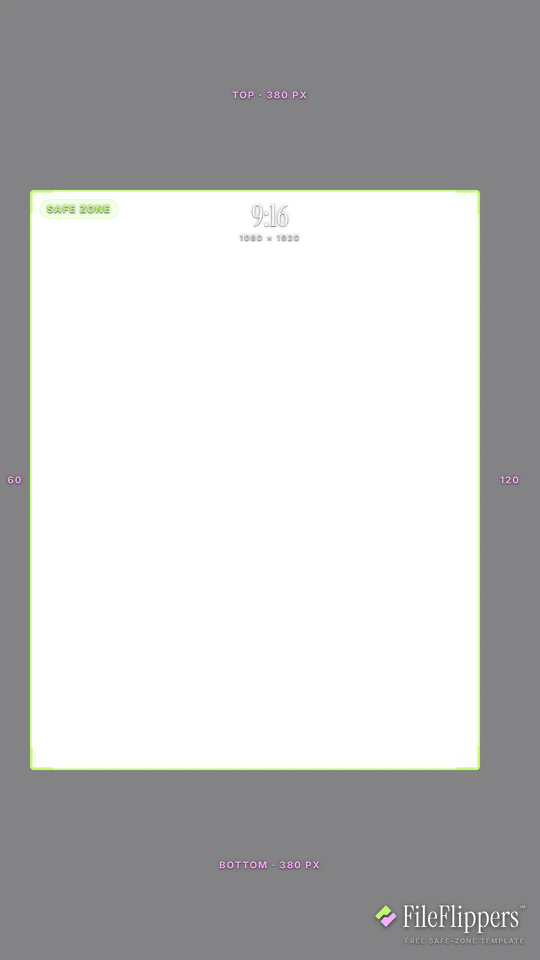
9:16 · YouTube Shorts — 1080 × 1920
Drop it over your video in Premiere, CapCut, Final Cut or Resolve and keep your text and logos inside the green box.
Reserves — top 380px · bottom 380px · left 60px · right 120px
Download PNG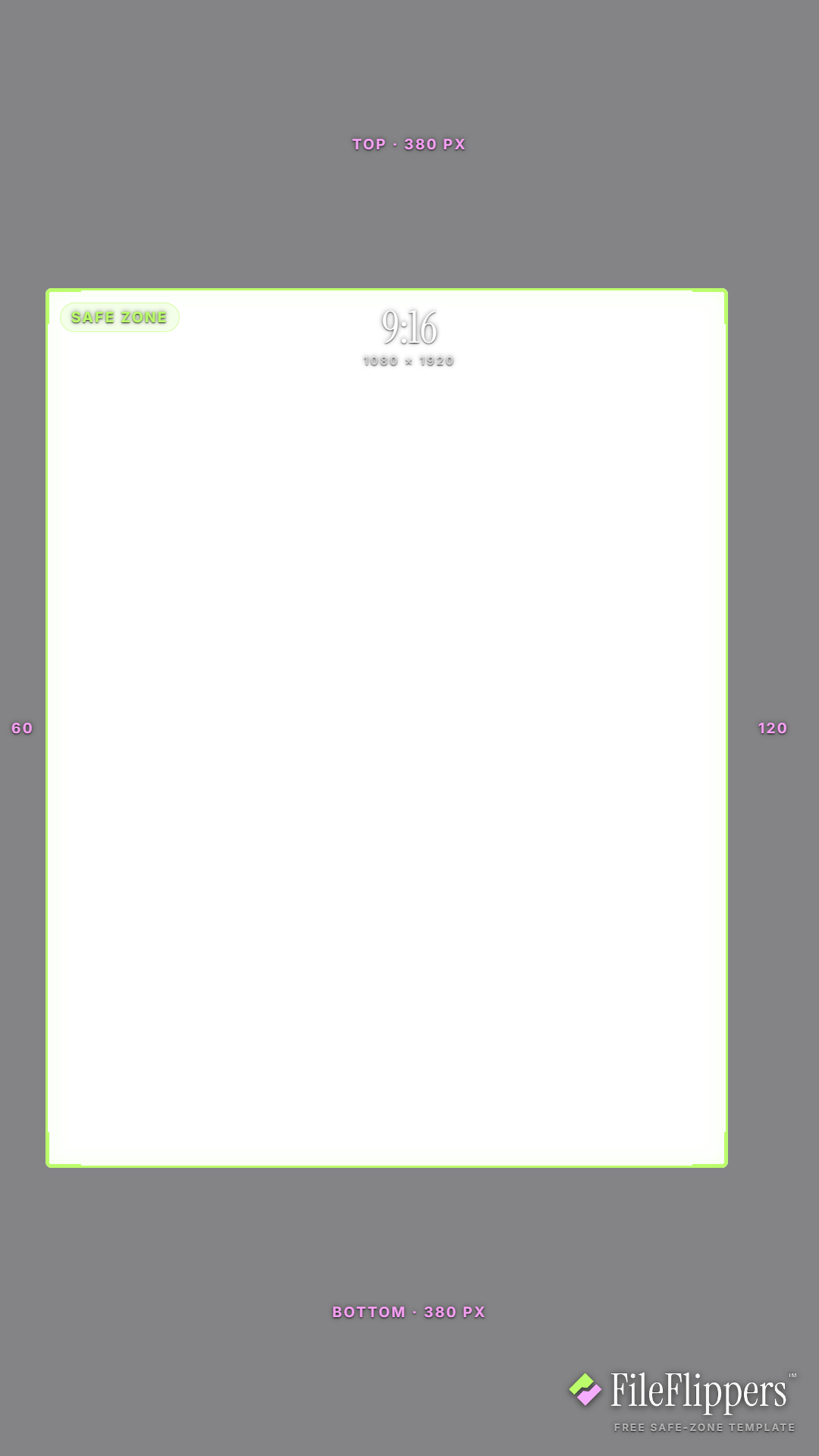
Where the YouTube Shorts UI sits
These are the margins the template reserves on a 1080 × 1920 frame. Keep text and logos out of them.
| Edge | Reserve | What sits there |
|---|---|---|
| Top | 380 px | Search and the progress bar sit up here. |
| Bottom | 380 px | Title, channel name, description and playback controls. |
| Left | 60 px | Left text margin. |
| Right | 120 px | Like, dislike, comment, share and remix buttons. |
YouTube Shorts safe-zone best practices
- Assume less usable height. Shorts reserves 380 px top and bottom, more than most vertical formats. Treat the middle band as your real canvas and keep everything important there.
- Keep titles clear of the description. The lower reserve holds the title, channel and description. Burned-in captions placed low will overlap that text, so lift them into the central safe box.
- Dodge the right-hand buttons. Like, dislike, comment, share and remix run up the right edge inside the 120 px reserve. Keep logos and key action out of the bottom-right corner.
- Repurposing from TikTok? Re-check. A clip cut to TikTok's lighter top margin can lose its hook on Shorts. Bump on-screen text inward before you cross-post, or start from the combined 9:16 guide.
How to use the overlay
- Download the transparent PNG above. The centre is clear, so it sits over your footage without hiding anything.
- Add it as a top layer in Premiere, CapCut, Final Cut or DaVinci Resolve, matched to the same resolution.
- Keep text and logos inside the green box, away from the shaded margins.
- Hide the overlay before you export. It is a guide, not part of the final video.
Frequently asked questions
What is the YouTube Shorts safe zone in pixels?
On a 1080×1920 Short, keep about 380 px clear top and bottom, 60 px on the left and 120 px on the right. Shorts reserves more vertical space than most formats, so the middle band is smaller than you'd expect.
Why does Shorts hide so much of the frame?
The top carries search and the progress bar, and the bottom holds the title, channel, description and controls. Add the right-hand buttons and a big chunk of the frame is covered, hence the generous 380 px top and bottom reserves.
Can I use the same clip on TikTok and Shorts?
You can, but TikTok's top margin is lighter, so a hook that clears TikTok can get covered on Shorts. Re-check the framing, or start from the combined 9:16 template that satisfies both.
Is the Shorts template free to download?
Yes, it's a free transparent PNG. No attribution is required and you don't need an account to grab it.
Made your clip? Send it in one link.
FileFlippers sends large video to clients and collaborators, with watermarked previews and payment-gated delivery. Free to start, no card required.