%20--%3e%3cdefs%3e%3cstyle%3e%20.st0%20{%20fill:%20%23f5acfe;%20}%20.st1%20{%20fill:%20%23bbfd6b;%20}%20%3c/style%3e%3c/defs%3e%3cpolygon%20class='st1'%20points='.2%2040%2039.9%20.3%2053.7%2014.2%2060.6%2020.9%2044.9%2036.5%2031.4%2035.2%2013.5%2053.2%20.2%2040'/%3e%3cpolygon%20class='st0'%20points='79.9%2040.1%2040.2%2079.8%2026.4%2066%2019.5%2059.2%2035.1%2043.6%2048.6%2044.9%2066.6%2026.9%2079.9%2040.1'/%3e%3c/svg%3e)
TikTok safe zone template
The TikTok safe zone is the middle of a 1080×1920 frame that stays clear of the app's interface. On a 9:16 clip that means keeping about 108 px off the top, 320 px off the bottom, 60 px on the left and 120 px on the right. Anything important inside that box is guaranteed to stay visible.
TikTok stacks a lot along the bottom and right. The username, caption, sound title and progress bar eat into the lower third, while the like, comment, save and share buttons plus the spinning sound disc run up the right edge. Drop a caption down there and half of it disappears behind the UI.
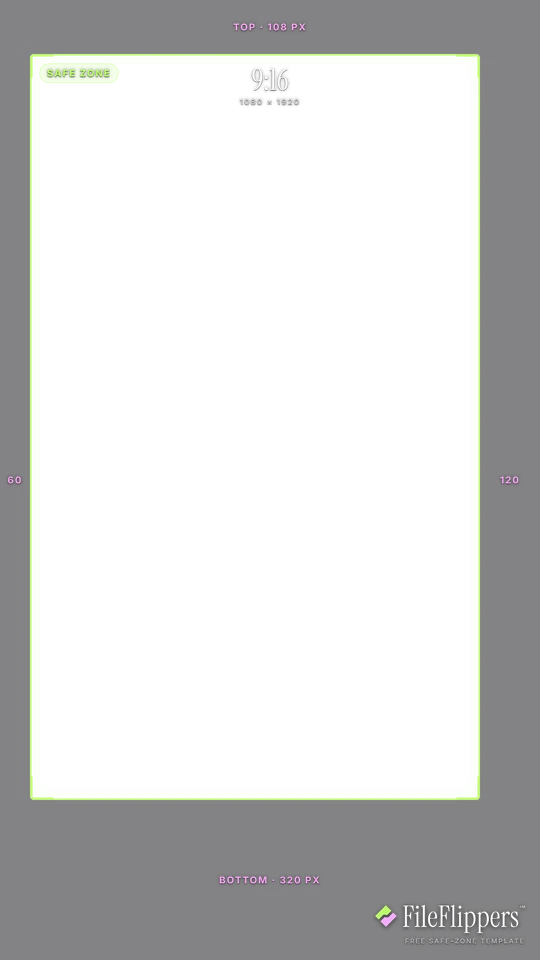
9:16 · TikTok — 1080 × 1920
Drop it over your video in Premiere, CapCut, Final Cut or Resolve and keep your text and logos inside the green box.
Reserves — top 108px · bottom 320px · left 60px · right 120px
Download PNG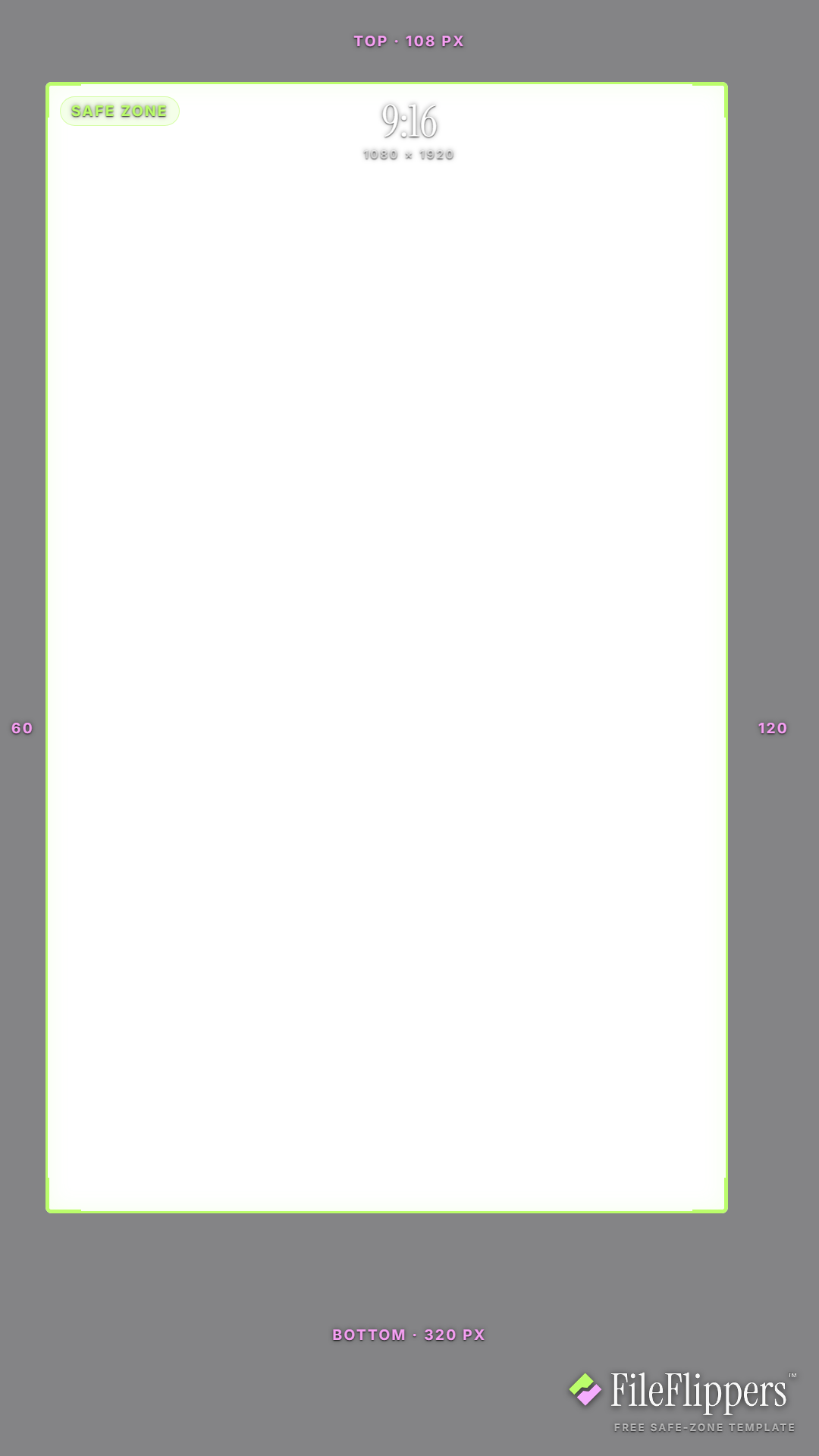
Where the TikTok UI sits
These are the margins the template reserves on a 1080 × 1920 frame. Keep text and logos out of them.
| Edge | Reserve | What sits there |
|---|---|---|
| Top | 108 px | For You and Following tabs, plus the search icon. |
| Bottom | 320 px | Username, caption, sound title and the progress bar. |
| Left | 60 px | Caption text margin, keep wording clear of it. |
| Right | 120 px | Like, comment, save and share buttons and the spinning sound disc. |
TikTok safe-zone best practices
- Put captions in the upper-middle. Burned-in captions read best in the top two thirds of the frame. The lower third is where TikTok stacks its own caption and sound title, so text down there fights the interface.
- Keep your logo off the right rail. The engagement buttons and sound disc live on the right edge. A watermark tucked into the bottom-right corner ends up half-hidden behind a like count. Bottom-left or top is safer.
- Land your hook up top. The first line of on-screen text should sit near the top where nothing covers it, so the hook lands in the first second before anyone thinks about scrolling.
- Ads reserve a bit more. Spark Ads and in-feed ads add a CTA button and sponsor label along the bottom. If you're running paid, pull text up further than this organic guide suggests.
How to use the overlay
- Download the transparent PNG above. The centre is clear, so it sits over your footage without hiding anything.
- Add it as a top layer in Premiere, CapCut, Final Cut or DaVinci Resolve, matched to the same resolution.
- Keep text and logos inside the green box, away from the shaded margins.
- Hide the overlay before you export. It is a guide, not part of the final video.
Frequently asked questions
What is the TikTok safe zone in pixels?
On a 1080×1920 vertical video, keep your content roughly 108 px clear of the top, 320 px off the bottom, 60 px off the left and 120 px off the right. Anything inside that box stays clear of TikTok's interface.
Where do TikTok captions get covered?
The bottom third and the right edge are the danger zones. The username, caption and sound title sit along the bottom, while the like, comment, save and share buttons run up the right. Keep your own text out of both.
Is this TikTok template free for commercial use?
Yes. The overlay is a free transparent PNG you can use on client work and your own, with no attribution required and no account needed to download it.
Does the safe zone change for TikTok ads?
A little. In-feed and Spark Ads add a CTA button and sponsor label along the bottom, so ads need more bottom clearance than organic posts. Pull your text up if you're running paid.
Made your clip? Send it in one link.
FileFlippers sends large video to clients and collaborators, with watermarked previews and payment-gated delivery. Free to start, no card required.