%20--%3e%3cdefs%3e%3cstyle%3e%20.st0%20{%20fill:%20%23f5acfe;%20}%20.st1%20{%20fill:%20%23bbfd6b;%20}%20%3c/style%3e%3c/defs%3e%3cpolygon%20class='st1'%20points='.2%2040%2039.9%20.3%2053.7%2014.2%2060.6%2020.9%2044.9%2036.5%2031.4%2035.2%2013.5%2053.2%20.2%2040'/%3e%3cpolygon%20class='st0'%20points='79.9%2040.1%2040.2%2079.8%2026.4%2066%2019.5%2059.2%2035.1%2043.6%2048.6%2044.9%2066.6%2026.9%2079.9%2040.1'/%3e%3c/svg%3e)
Free social media
safe-zone templates
Every social platform layers its own interface over your video: captions, usernames, like and share buttons, progress bars. If your text or logo sits under one of those, it gets covered. A safe zone is the central region of the frame that stays clear of platform UI, and keeping your important content inside it is the difference between a clip that reads and one that gets buried.
These free overlay templates mark exactly where the safe zone sits for each format. Download the transparent PNG, drop it onto a layer above your video in Premiere, Final Cut, DaVinci Resolve or CapCut, line your text and logos up inside the green box, then hide the layer before you export. They are tuned to current 2026 layouts and built conservatively, so your content stays visible everywhere.
Download a template
Grab a single format below, or download the whole set as a ZIP. The 9:16 all-platforms template uses the widest margins of TikTok, Reels and Shorts combined, so a clip built inside it is safe on every vertical feed.
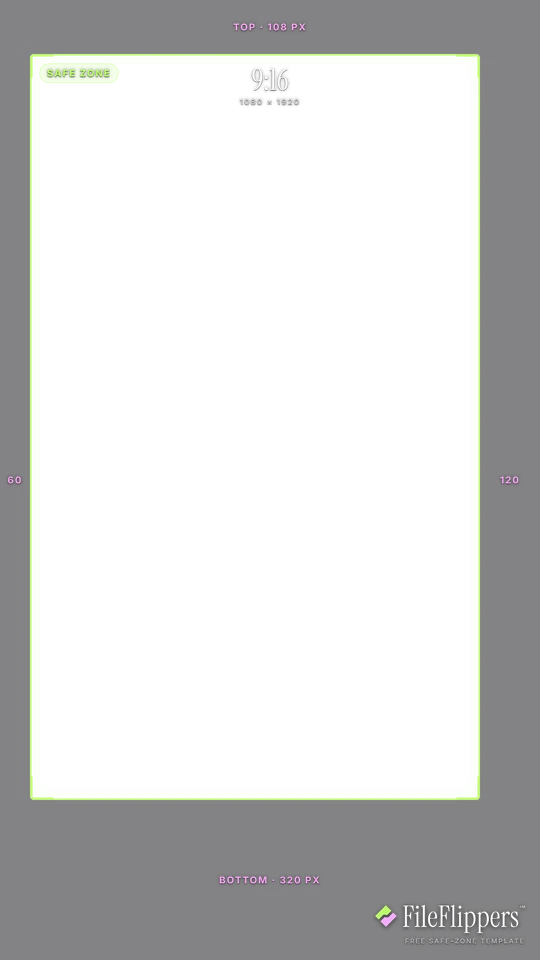
9:16 · TikTok — 1080 × 1920
Drop it over your video in Premiere, CapCut, Final Cut or Resolve and keep your text and logos inside the green box.
Reserves — top 108px · bottom 320px · left 60px · right 120px
Download PNG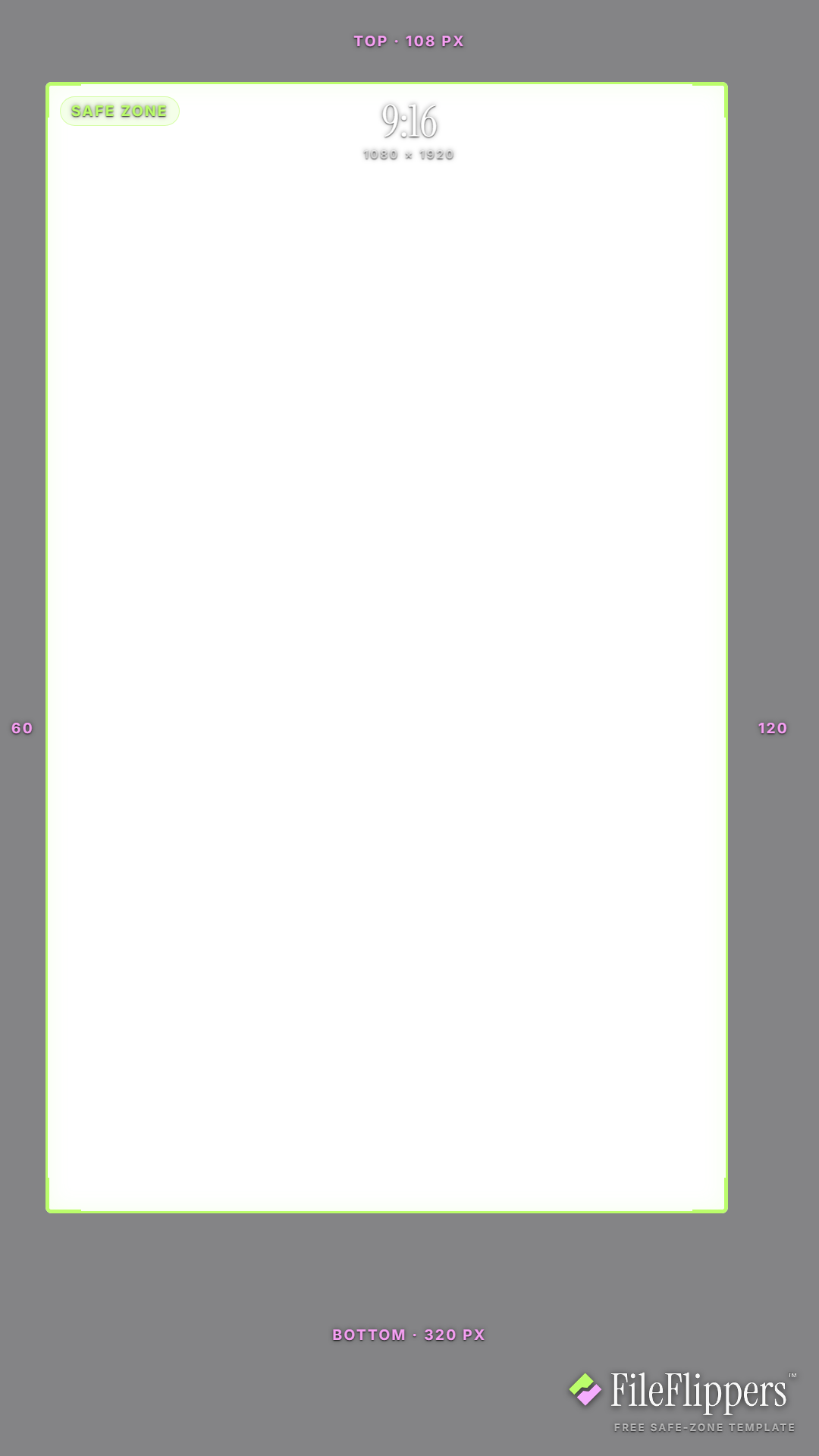
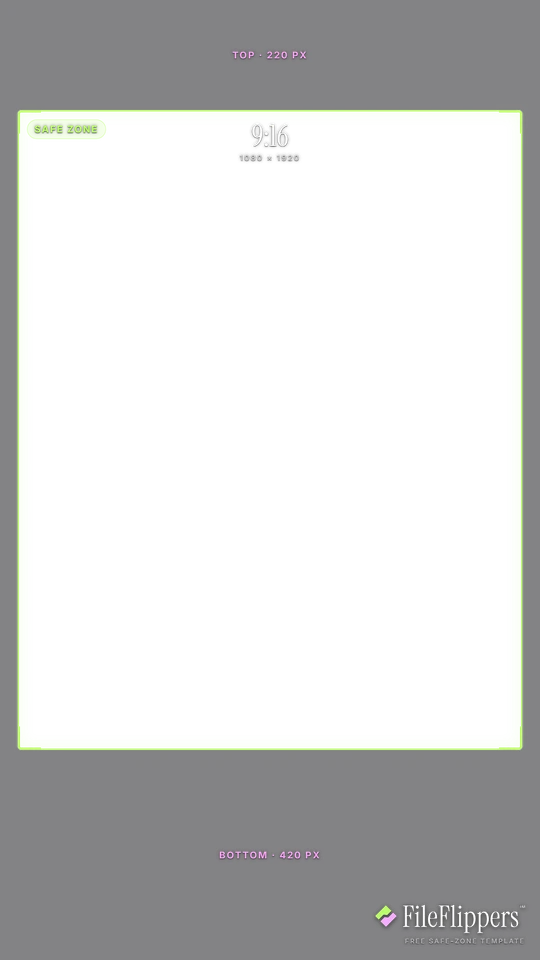
9:16 · Instagram & Facebook Reels — 1080 × 1920
Drop it over your video in Premiere, CapCut, Final Cut or Resolve and keep your text and logos inside the green box.
Reserves — top 220px · bottom 420px · left 35px · right 35px
Download PNG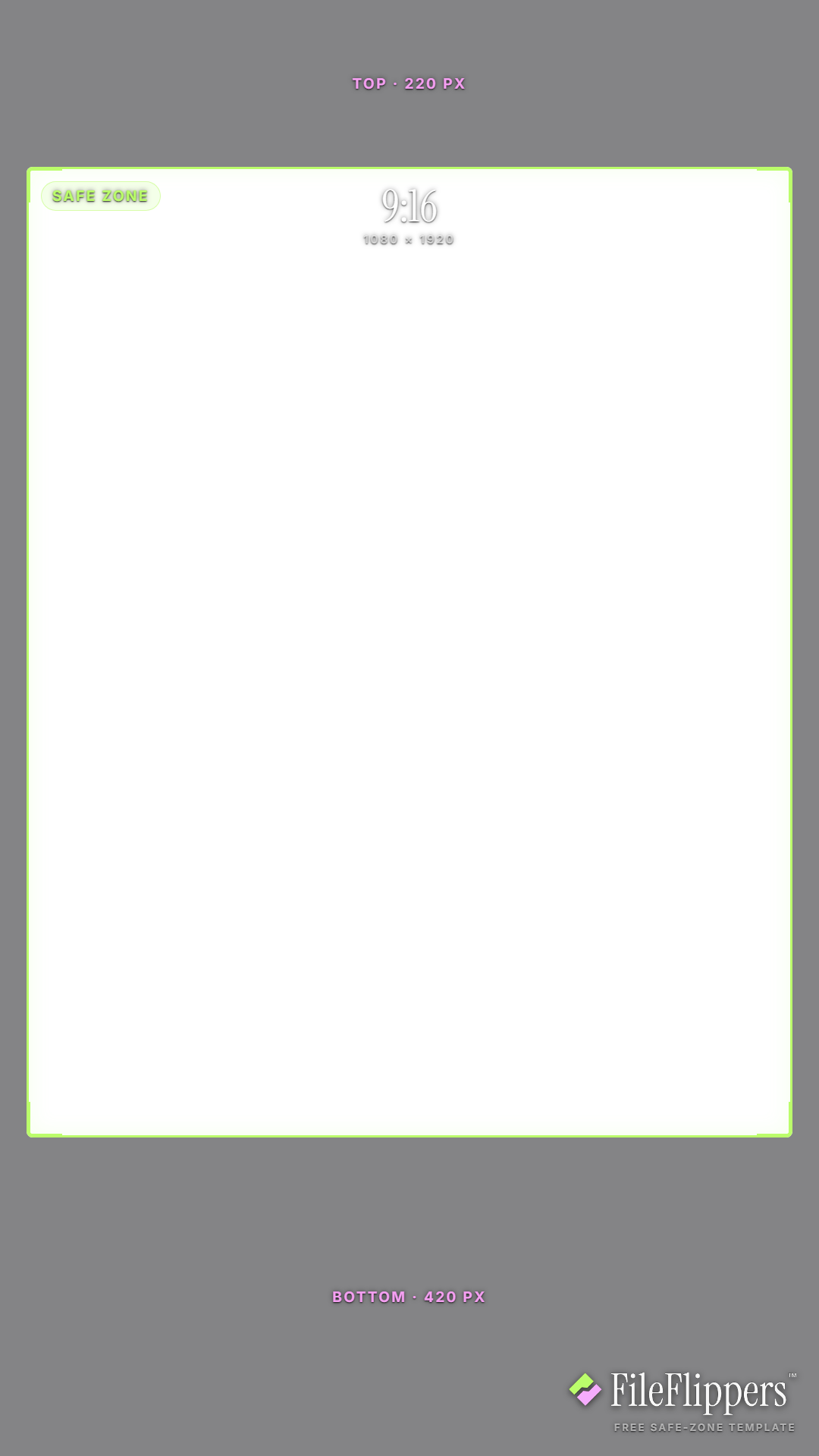
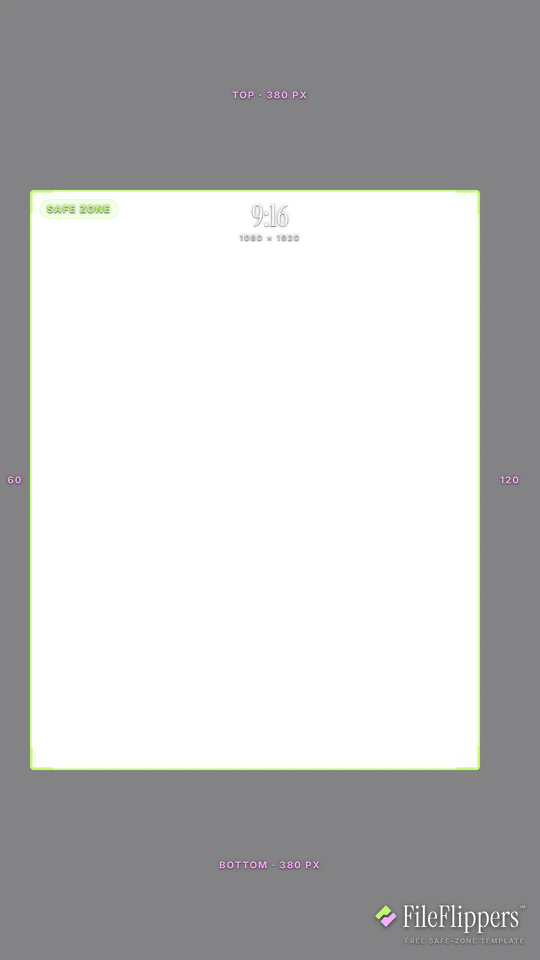
9:16 · YouTube Shorts — 1080 × 1920
Drop it over your video in Premiere, CapCut, Final Cut or Resolve and keep your text and logos inside the green box.
Reserves — top 380px · bottom 380px · left 60px · right 120px
Download PNG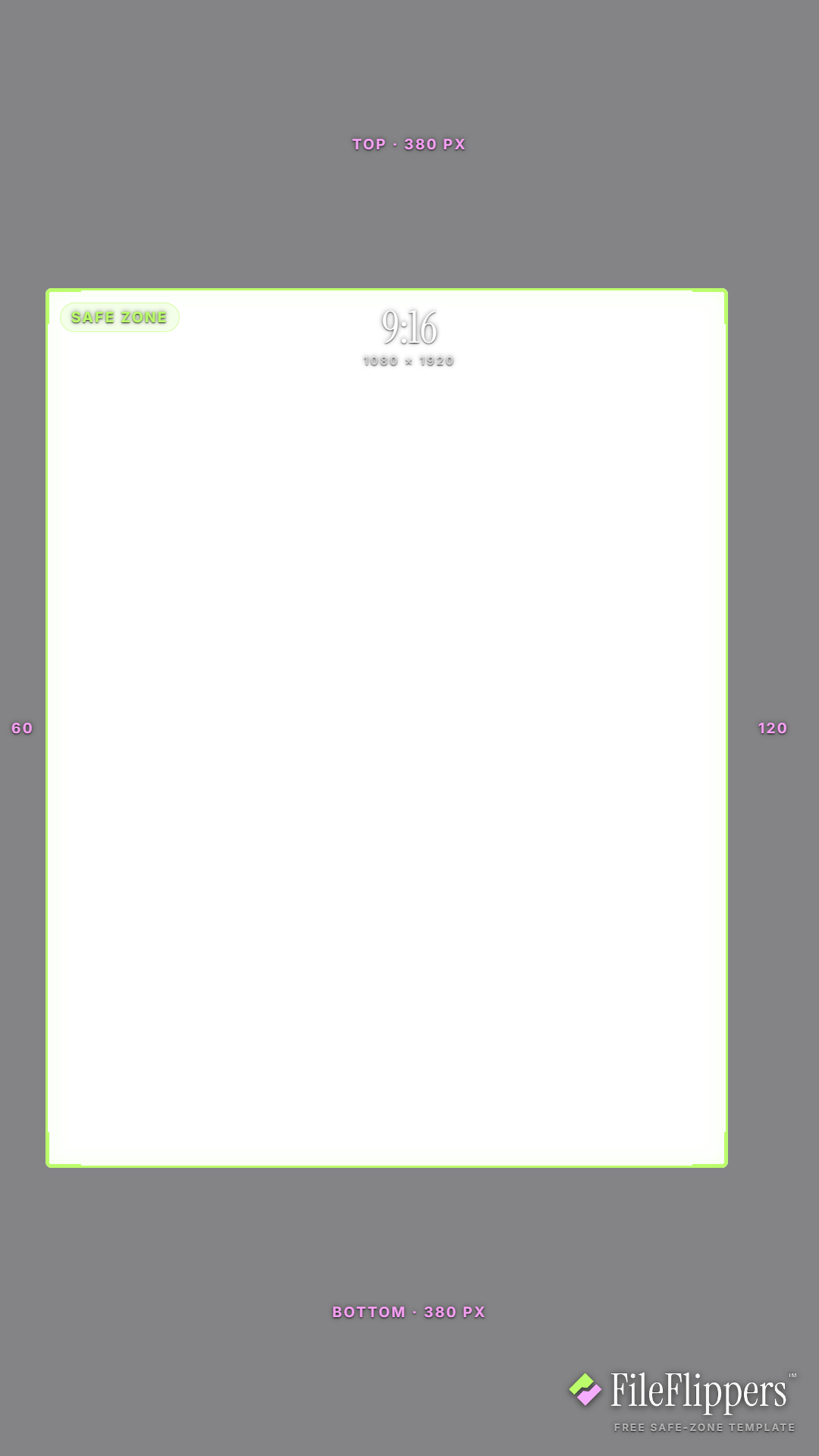
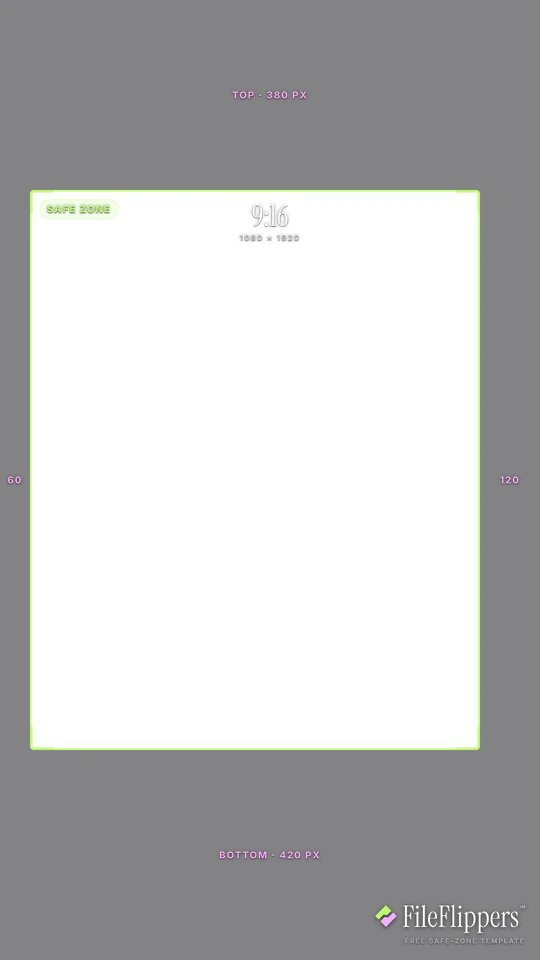
9:16 · All vertical platforms — 1080 × 1920
Drop it over your video in Premiere, CapCut, Final Cut or Resolve and keep your text and logos inside the green box.
Reserves — top 380px · bottom 420px · left 60px · right 120px
Download PNG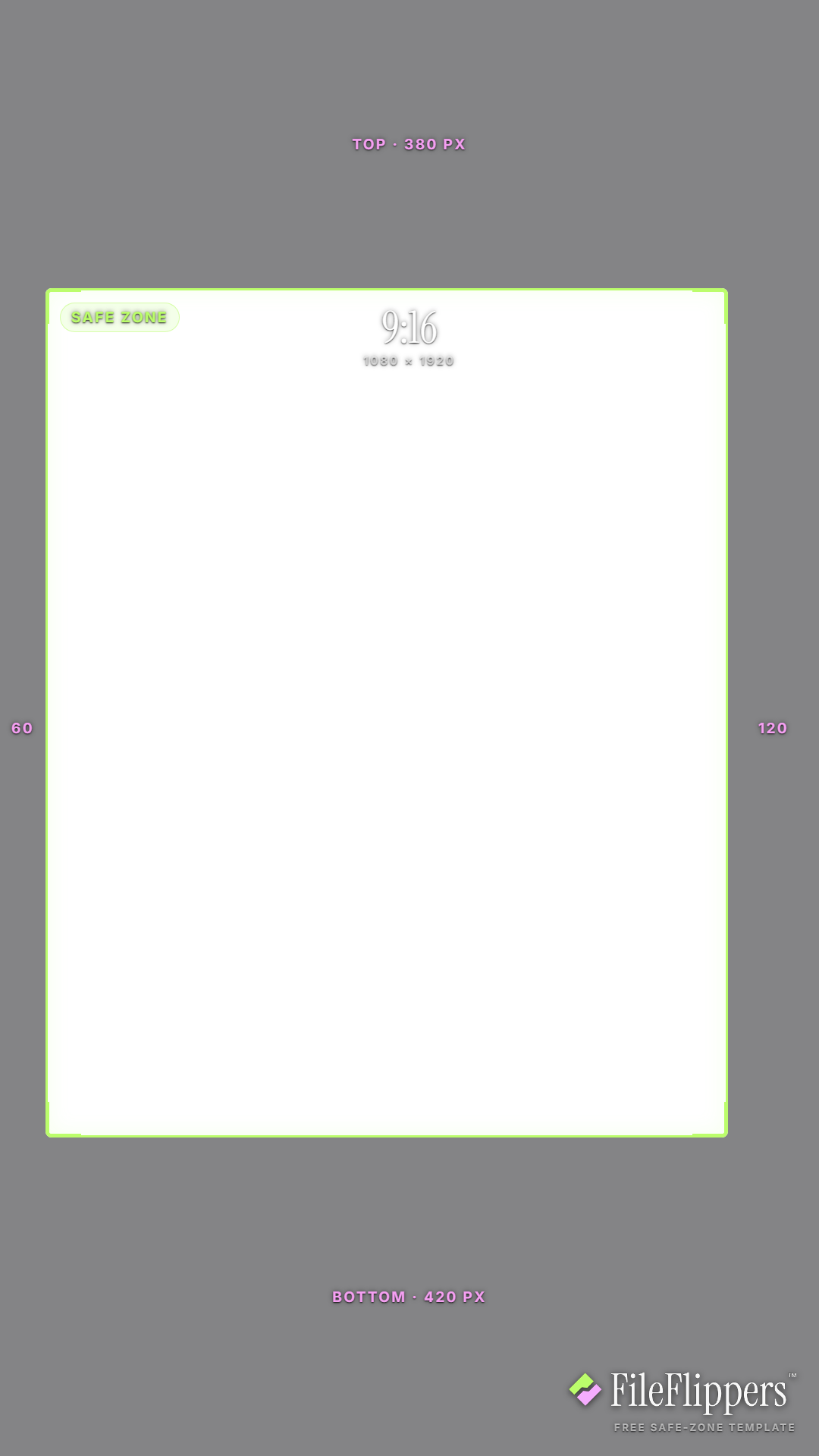
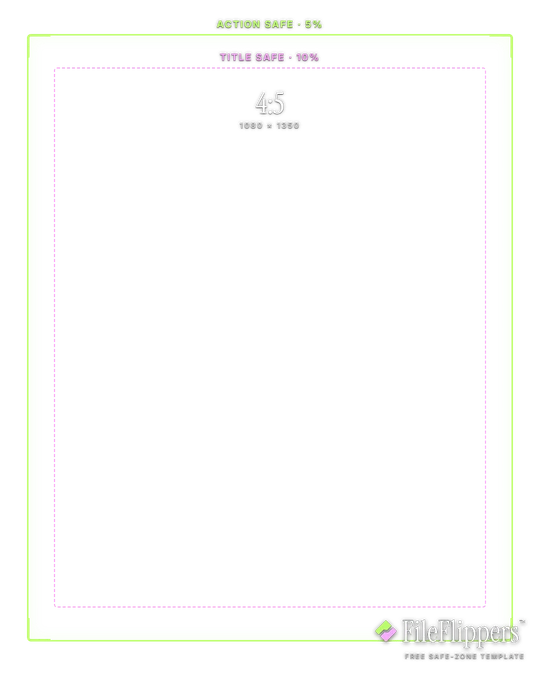
4:5 · Feed — 1080 × 1350
Drop it over your video in Premiere, CapCut, Final Cut or Resolve and keep your text and logos inside the green box.
Action-safe 5% + title-safe 10% broadcast guides
Download PNG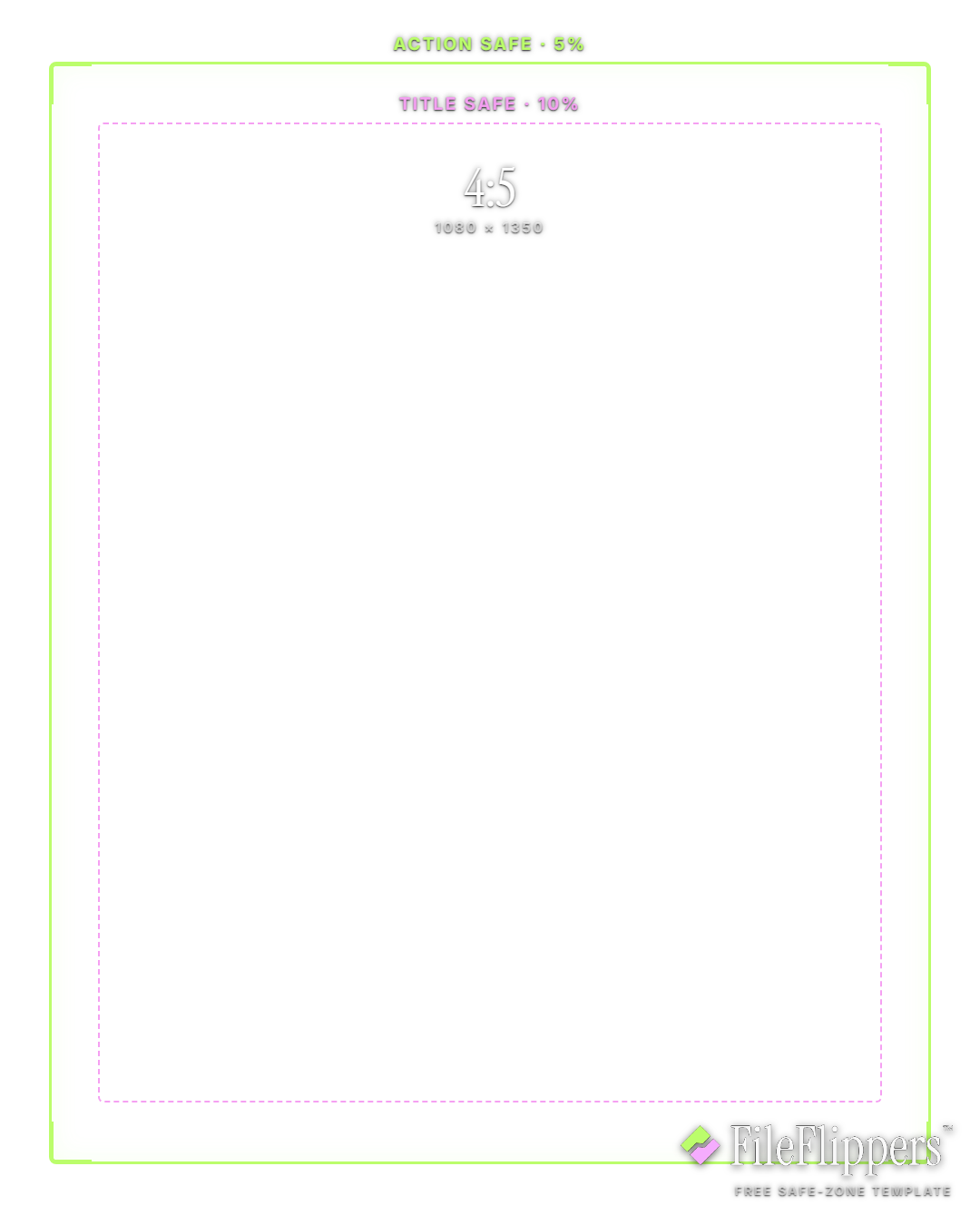
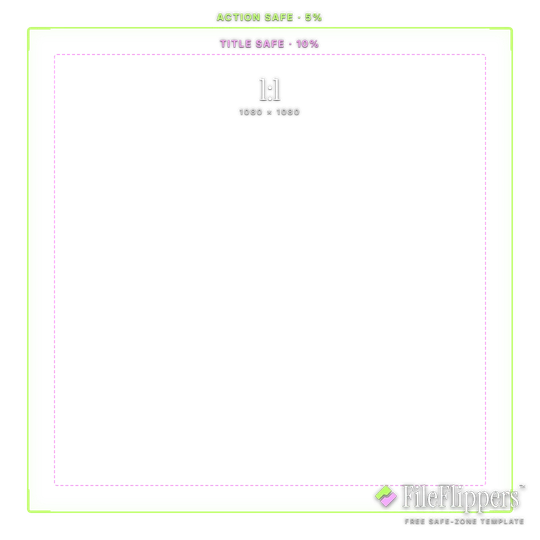
1:1 · Square — 1080 × 1080
Drop it over your video in Premiere, CapCut, Final Cut or Resolve and keep your text and logos inside the green box.
Action-safe 5% + title-safe 10% broadcast guides
Download PNG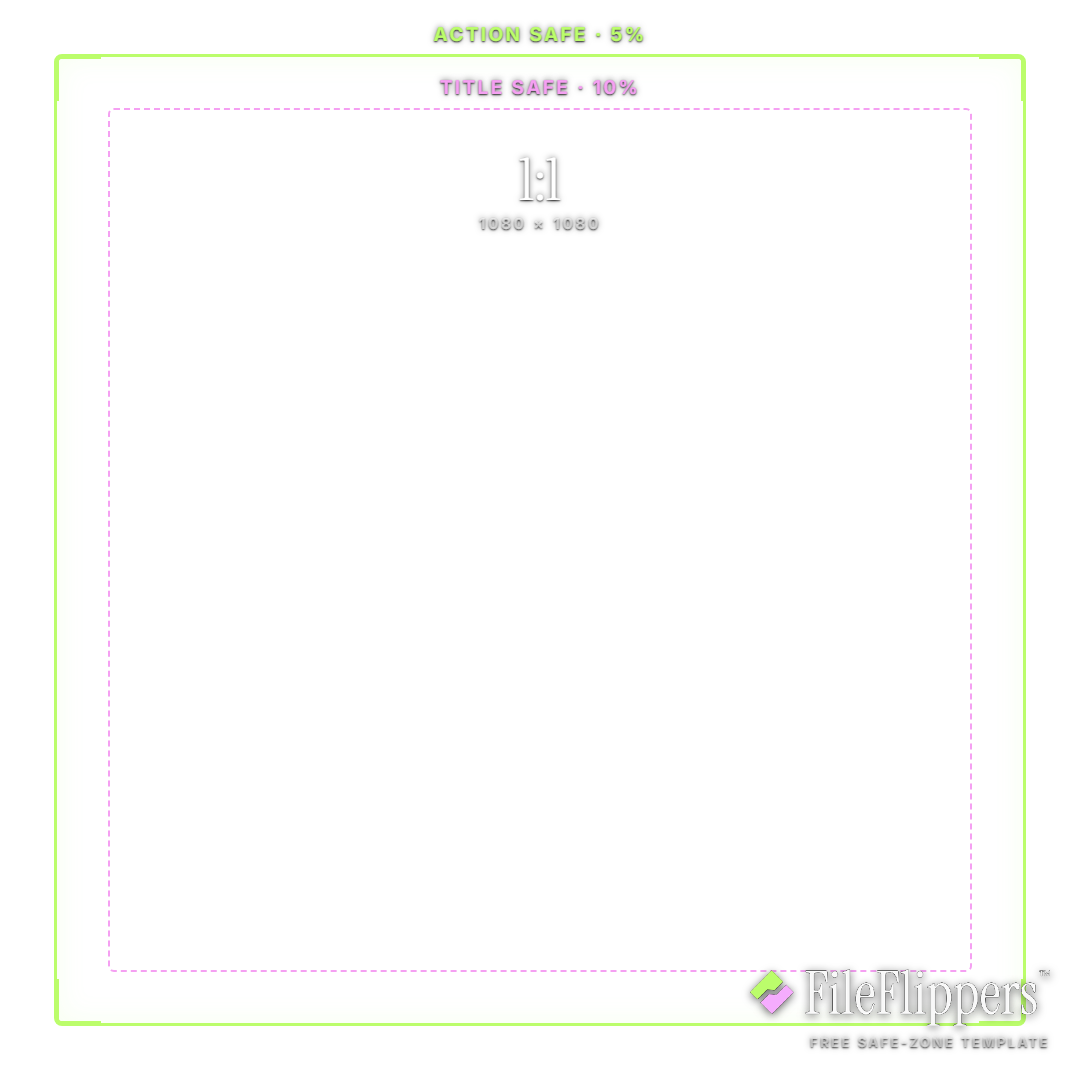
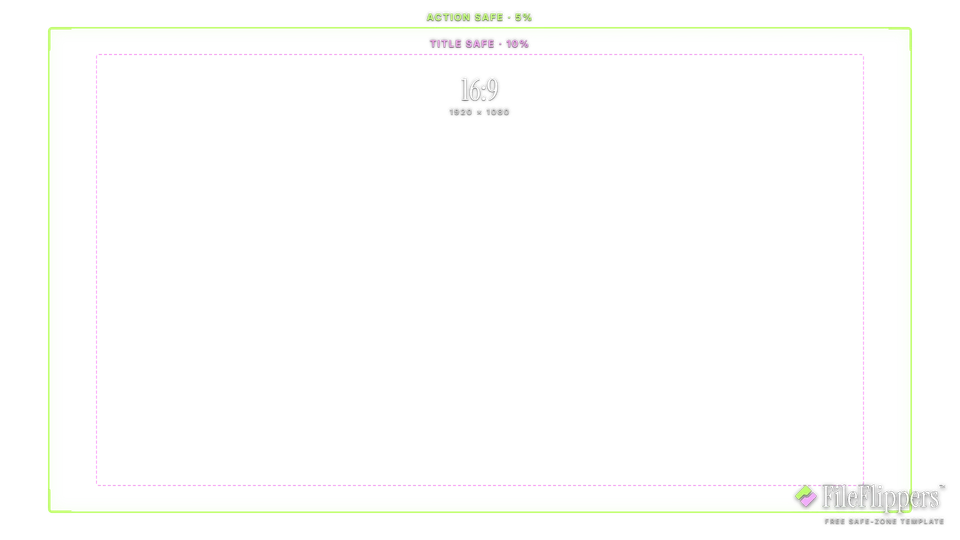
16:9 · Landscape — 1920 × 1080
Drop it over your video in Premiere, CapCut, Final Cut or Resolve and keep your text and logos inside the green box.
Action-safe 5% + title-safe 10% broadcast guides
Download PNG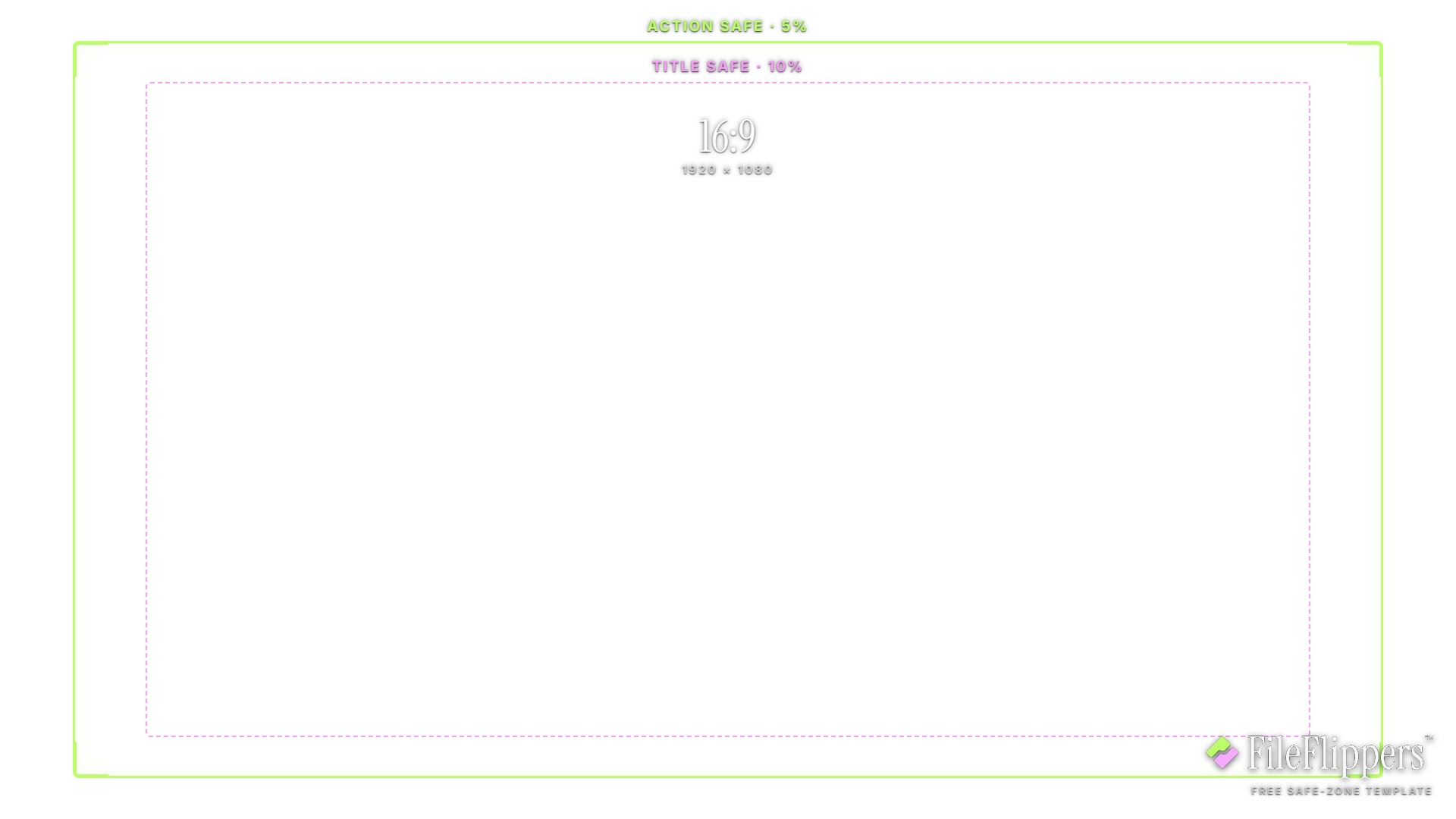
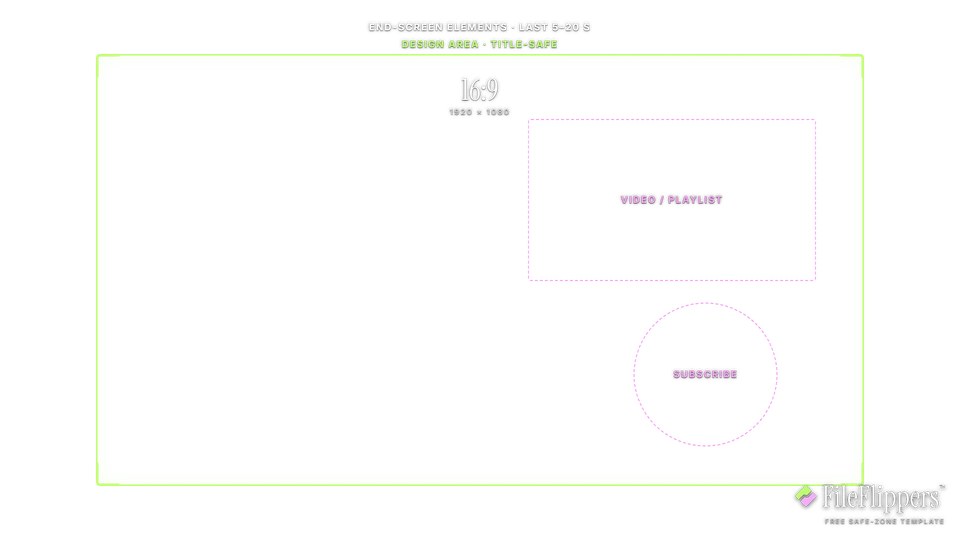
16:9 · YouTube End Screen — 1920 × 1080
Drop it over your video in Premiere, CapCut, Final Cut or Resolve and keep your text and logos inside the green box.
Action-safe 5% + title-safe 10% broadcast guides
Download PNG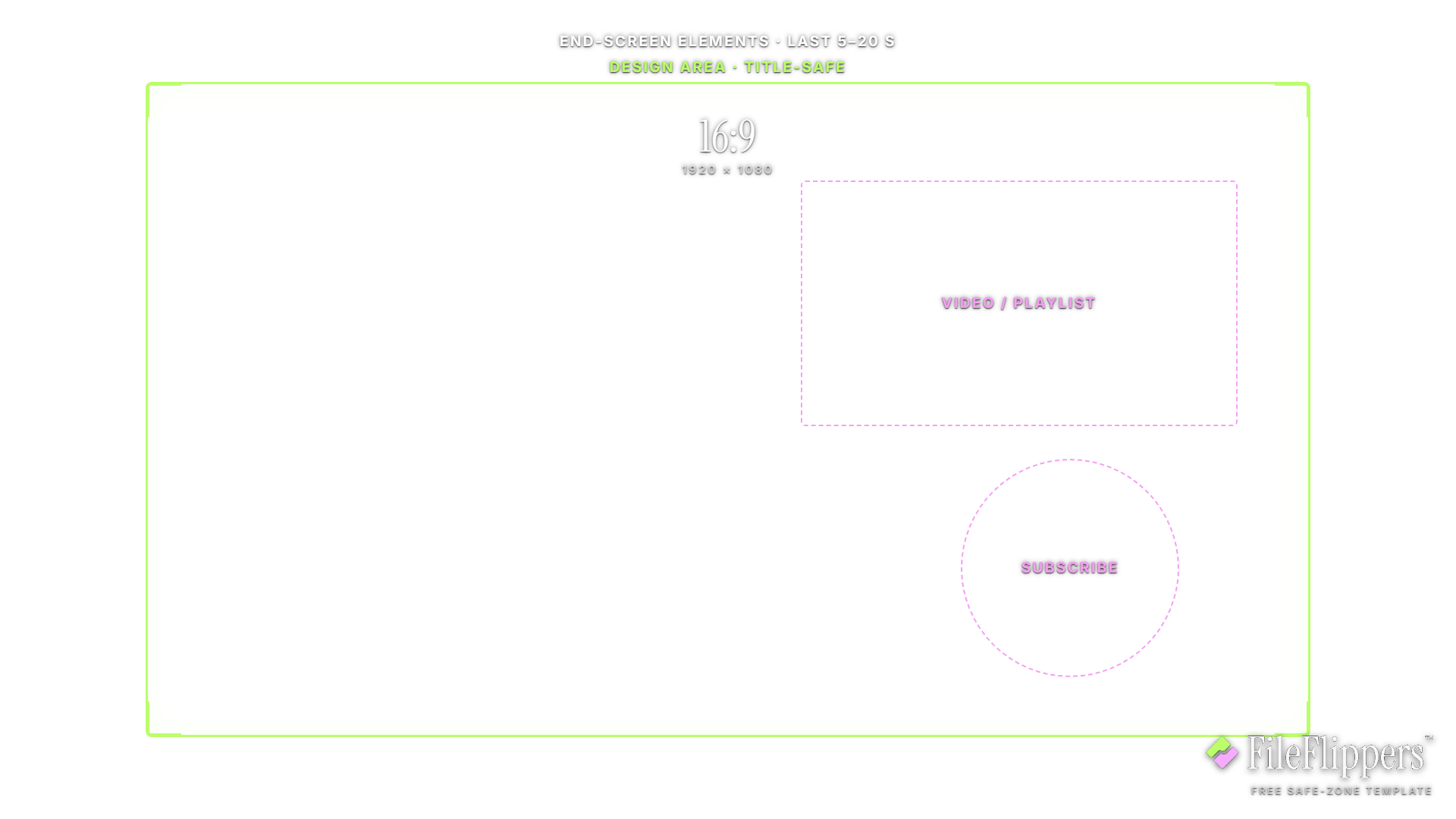
Frequently asked questions
Are these safe-zone templates really free?
Yes. Download any format, or the whole set as a ZIP, with no account and no attribution required. They are a free tool from FileFlippers, which sends your finished video to clients on one link with watermarked previews and payment-gated delivery.
Which template should I use for TikTok, Reels and Shorts?
Use the platform-specific template if you are posting to a single app. If the same clip goes everywhere, use the 9:16 all-platforms template, which reserves the widest margin on each edge across TikTok, Reels and Shorts so your content stays clear on all three.
How do I use a safe-zone overlay in my editor?
Download the transparent PNG, drop it on a layer above your footage at the matching resolution (for example 1080 × 1920 for vertical), position your text and logos inside the green box, then hide the layer before you export. It is a guide, not part of the final video.
Do the safe zones ever change?
Platform interfaces shift with app updates, so treat safe zones as conservative guides rather than pixel-perfect rules. These templates reflect current 2026 layouts and err on the generous side, so your content stays visible through minor UI changes.
What do the 4:5, 1:1 and 16:9 templates show?
Those formats have no fixed platform UI, so they use broadcast-style guides instead: an action-safe area at 5% inset and a title-safe area at 10% inset. Keep motion inside action-safe and text inside title-safe.
Skip the reformatting grind
FileFlippers sends your finished video to clients on one branded link, with watermarked previews, payment-gated delivery, and conversion built in. Free to start, no card required.